

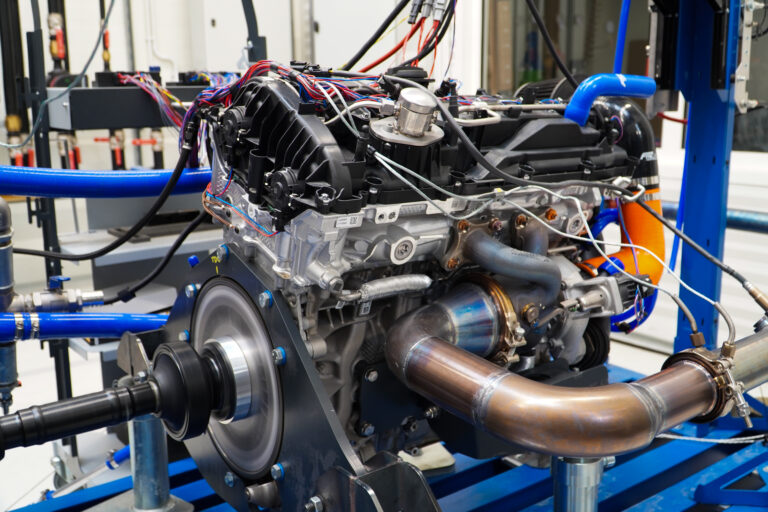
BMW B58TU Gen 2 Engine
This configuration applies only to the B58TU Gen 2 engine itself and does not include any vehicle-specific settings. Be sure to configure all additional components, such as the low-pressure fuel pump, cooling fans, starter, and other auxiliary systems.
This is a base map. It is highly recommended to tune the engine before the first full-load use.
Important: The 3-wire valve in the Heat Management Module (HMM) must be connected to an ignition-switched +12 V supply and to ground. If left unpowered, the valve cuts the coolant flow to the cylinder water jacket, causing the cylinder sleeves to overheat. With power and ground connected but no PWM control signal, the valve stays fully open.
The base map controls the following:
- GDI injectors
- GDI high-pressure fuel pump
- Alternator control via LIN
- Closed-loop oil pressure control
- Electronic throttle
- Electronic wastegate (EWG), with boost control using the pre-turbocharger pressure sensor
- Knock control
- Fuel rail pressure sensor (SENT protocol)
- VVT solenoid control
- Electronic thermostat with closed-loop temperature target (position read from a SENT sensor)
Non-mapped or unsupported features:
- Valvetronic control is not supported. The intake valve lift must be locked at maximum opening.
Modifications:
- Exhaust system without catalytic converters
- LSU 4.9 sensor installed in the downpipe (OEM oxygen sensor is not supported)
Setup Details:
Tuned Power Output:
- Power: 315 HP
- Torque: 450 Nm
- Boost Pressure: 40 kPa (0.4 bar)
- Tuned on a dyno
 |
Downloads
Full Description and Specifications
How to Load This Base Map
1. Download EMU PRO software version 261.2.2 or later:
https://www.ecumaster.com/products/emu-pro/2. Open the Base Map Loader (File / Load Base Map…)
3. Select the base map for your engine
For more details, see:
How to Load Base Maps in EMU PRO⚠ Before loading to your ECU:
This base map is a starting point for tuning. It is not guaranteed to work correctly out of the box and may require adjustments to fit your particular setup.
Verify that all assigned outputs match your wiring. In the software, go to Tools / Assigned outputs and Tools / Assigned inputs. If the assignments do not match, do not load the map to your ECU. Adjust the outputs as necessary before proceeding.
